Author: Dallin Nguyen

  • HLSL Introduction

    HLSL (High-Level Shading Language) is a programming language used to write shaders for graphics applications, primarily in the context of DirectX-based systems. HLSL is used in graphics programming for games, simulations, and other real-time rendering applications.

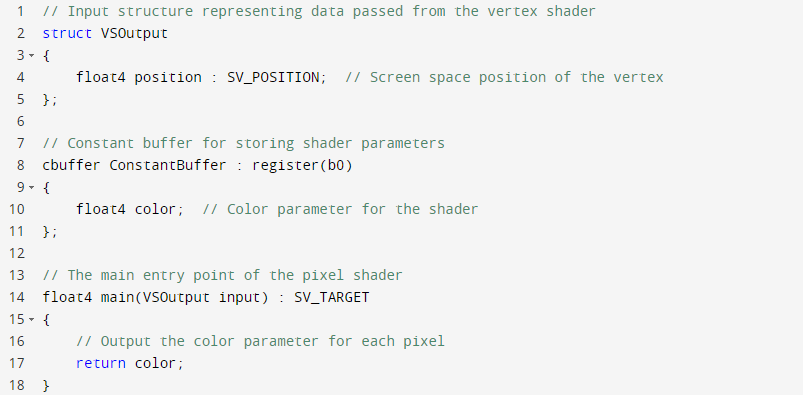
    Here’s a simple code sample of an HLSL pixel shader that applies a basic color to each pixel:

    In this example, the pixel shader takes an input structure VSOutput, which contains the screen space position of the vertex passed from the vertex shader. It also uses a constant buffer ConstantBuffer to store shader parameters, in this case, a single color.

    The main function main is the entry point of the pixel shader. It simply returns the color parameter color for each pixel, which will be the output value.

    Note that this is a basic example to demonstrate the structure of an HLSL pixel shader. In practice, shaders can be much more complex, involving lighting calculations, texture sampling, and other operations to achieve desired visual effects.

  • Graphics Pipeline

    The graphics pipeline, also known as the rendering pipeline, is a series of stages through which graphics data passes to be transformed from 3D object data into 2D images displayed on a screen. The graphics pipeline is responsible for processing geometry, applying transformations, applying materials and textures, applying lighting, and generating the final rendered image. Here is a high-level overview of the typical stages in a graphics pipeline:

    1. Vertex Processing:
      • Input: 3D object data (vertices, normals, texture coordinates).
      • This stage processes each vertex, applying transformations like translations, rotations, and scaling to bring them from object space to world space, and then from world space to camera/view space using the camera’s position and orientation.
    2. Primitive Assembly:
      • Input: Transformed vertices from the vertex processing stage.
      • This stage groups vertices into geometric primitives (such as triangles, lines, or points) that are used to define the shape of the object.
    3. Rasterization:
      • Input: Geometric primitives from the primitive assembly stage.
      • This stage converts the geometric primitives into a series of fragments (pixels) on the screen. It determines which fragments are covered by the primitive and computes their attributes, such as depth, texture coordinates, and interpolated vertex attributes.
    4. Fragment Processing:
      • Input: Fragments generated during rasterization.
      • This stage applies per-fragment operations, including depth testing, stencil testing, blending, and shading calculations, which determine the final color and other attributes of each pixel.
    5. Texture Mapping:
      • Input: Texture coordinates from the fragment processing stage.
      • This stage samples textures based on the texture coordinates associated with each fragment. Textures provide surface details, colors, and other visual information that can be applied to the object’s geometry.
    6. Per-pixel Lighting:
      • Input: Lighting calculations based on fragment attributes.
      • This stage computes lighting effects, such as diffuse and specular reflections, ambient lighting, shadows, and other illumination models, to enhance the realism and visual quality of the rendered object.
    7. Screen Mapping:
      • Input: Final pixel colors from the lighting stage.
      • This stage maps the 2D screen space coordinates to the actual display, accounting for factors such as screen resolution, aspect ratio, and viewport settings.
    8. Output:
      • The final image is sent to the display device for presentation to the user.

    The graphics pipeline can vary depending on the graphics API, rendering technique, and platform used. Different APIs, such as DirectX or OpenGL, provide various levels of control and flexibility in defining the stages of the graphics pipeline and can offer different optimizations and features.

    Understanding the graphics pipeline is essential for optimizing performance, implementing advanced rendering effects, and achieving visually appealing graphics in game development and computer graphics applications.

  • Graphics APIs

    Graphics APIs (Application Programming Interfaces) are software interfaces that allow developers to interact with the underlying hardware and graphics subsystems to render graphics and visuals in a game or application. There are several graphics APIs available, each with its own features, capabilities, and compatibility. Here are some of the most common graphics APIs and their differences:

    1. OpenGL: OpenGL is a widely-used, cross-platform graphics API. It provides a set of functions for rendering 2D and 3D graphics and is supported on various operating systems, including Windows, macOS, and Linux. OpenGL is known for its flexibility and wide hardware support but can be relatively low-level, requiring more manual control over rendering processes.
    2. DirectX: DirectX is a collection of APIs developed by Microsoft for Windows-based systems. It includes different components such as Direct3D (for rendering 2D and 3D graphics), DirectSound (for audio), and DirectInput (for input handling). DirectX is known for its strong integration with Windows and its popularity in PC gaming. It offers high-level abstractions and is often used in combination with other DirectX components.
    3. Metal: Metal is a graphics and compute API developed by Apple for iOS, macOS, and tvOS. It provides low-level access to the GPU and allows developers to achieve high performance on Apple devices. Metal is known for its efficiency and fine-grained control over graphics rendering. It is widely used in Apple’s ecosystem for games and applications.
    4. Vulkan: Vulkan is a cross-platform, low-level graphics and compute API developed by the Khronos Group. It provides explicit control over GPU operations, multithreading capabilities, and efficient resource management. Vulkan is designed to be highly efficient and scalable, allowing developers to achieve high performance on a wide range of platforms, including Windows, Linux, and Android.
    5. WebGL: WebGL is a web-based graphics API based on OpenGL ES (Embedded Systems). It allows developers to render 2D and 3D graphics directly in web browsers without requiring additional plugins. WebGL is widely supported by modern browsers and is used for creating interactive web-based games and applications.

    Each graphics API has its own strengths and characteristics. The choice of API depends on factors such as the target platform, performance requirements, development environment, and compatibility with other technologies or frameworks used in the project. It’s important to consider these factors and choose the appropriate graphics API to achieve the desired graphics quality and performance for your specific project.

  • What is Unity rendering pipeline?

    The Unity rendering pipeline refers to the series of stages and processes involved in rendering graphics and visuals in a Unity game or application. The rendering pipeline determines how Unity takes the 3D models, textures, shaders, lights, and other visual elements of your scene and transforms them into the final images that appear on the screen. Unity provides several rendering pipelines, each with its own features, capabilities, and performance characteristics. The main rendering pipelines in Unity are:

    1. Built-in Render Pipeline (also known as the Legacy Render Pipeline):
      • The Built-in Render Pipeline is the original rendering system in Unity.
      • It uses a forward rendering approach, where each object is rendered in a single pass.
      • It supports a wide range of platforms and provides flexibility for customization.
      • It lacks some advanced features like deferred shading, but it is simpler to understand and can be more performant on low-end devices.
    2. Universal Render Pipeline (URP):
      • URP is a lightweight rendering pipeline designed to offer great performance across a wide range of platforms, including mobile, VR, and desktop.
      • It uses a hybrid approach that combines forward and deferred rendering techniques.
      • URP supports features such as shader graph, post-processing effects, and lightweight render pipeline-specific rendering passes.
      • It provides a balance between performance and visual quality, making it suitable for a broad range of projects.
    3. High Definition Render Pipeline (HDRP):
      • HDRP is a highly advanced rendering pipeline designed for high-fidelity graphics, visual effects, and AAA-quality projects.
      • It supports features like physically-based rendering, global illumination, volumetric lighting, and more.
      • HDRP utilizes deferred shading and is optimized for high-end platforms.
      • It offers more control over rendering settings and allows for custom shader creation and advanced post-processing effects.
    4. Custom Render Pipelines:
      • Unity also allows you to create your own custom rendering pipeline using the Scriptable Render Pipeline (SRP) system.
      • SRP enables you to define your rendering logic, shaders, and other graphics-related functionalities.
      • It provides the flexibility to tailor the rendering pipeline to suit your specific project requirements.
      • Custom Render Pipelines are commonly used in specialized applications or for implementing specific rendering techniques.

    It’s worth noting that Unity has introduced the Data-Oriented Technology Stack (DOTS) and the Universal Render Pipeline 2D (URP 2D) package, which provide additional performance optimizations and features for specific use cases, such as high-performance computing and 2D game development, respectively.

    The choice of rendering pipeline depends on your project’s requirements, target platforms, performance considerations, and desired visual fidelity. Unity offers different pipelines to cater to a wide range of project types, from mobile games to high-end PC/console experiences.

  • What is Unity Life Cycle?

    In Unity, the term “lifecycle” refers to the sequence of events that occur during the execution of a game or application. Understanding the Unity lifecycle is crucial for properly managing and controlling the behavior of your scripts and game objects. The Unity lifecycle consists of several key events that are automatically called by the engine at specific points in time. Here’s an overview of the Unity lifecycle:

    1. Initialization Phase:
      • Awake: This event is called when a script or game object is initialized. It is typically used for initial setup and variable initialization.
    2. Scene Activation Phase:
      • OnEnable: This event is triggered when a script or game object becomes active or enabled. It can be used to start or resume functionality.
      • Start: This event is called before the first frame update. It is commonly used for initialization that requires all objects to be set up.
    3. Frame Update Phase:
      • FixedUpdate: This event is called at a fixed time interval (physics timestep) and is used for physics-related calculations and updates.
      • Update: This event is called every frame and is used for general game logic and non-physics related updates.
      • LateUpdate: This event is called after all Update calls have been made. It is useful for handling camera movements or ensuring other updates have occurred before executing certain behaviors.
    4. Rendering Phase:
      • OnPreCull, OnBecameVisible: These events are called when the object becomes visible by any camera in the scene.
      • OnWillRenderObject: This event is triggered when the object will be rendered by any camera. It can be used for custom rendering or special effects.
      • OnRenderObject: This event is called during the rendering process and can be used for custom rendering using the Graphics class.
    5. GUI Phase:
      • OnGUI: This event is triggered when Unity is rendering the GUI. It is commonly used for drawing custom UI elements.
    6. Input and Physics Phase:
      • OnMouseUp, OnTriggerEnter, etc.: These events are called in response to specific input or physics interactions. They allow you to handle user input, collision detection, and other interactions.
    7. Deactivation and Destruction Phase:
      • OnDisable: This event is called when a script or game object becomes inactive or disabled. It is commonly used to stop or pause functionality.
      • OnDestroy: This event is triggered when a script or game object is being destroyed. It allows for final cleanup and resource release.

    Understanding the Unity lifecycle enables you to write scripts that respond appropriately to various events and ensures that your game objects behave as expected during runtime. By implementing specific functions associated with these events, you can control the flow of your game or application and manage interactions between objects and systems.

  • What is material in Game Programming?

    In game programming, a material refers to the combination of visual properties assigned to a 3D object or surface in a game or virtual environment. A material defines how an object looks and interacts with light, determining its color, texture, shininess, transparency, and other visual attributes.

    A material is typically created using shaders, which are small programs that run on the GPU (Graphics Processing Unit) and control the rendering of objects. Shaders define how light interacts with the object’s surface, calculate the final color of each pixel, and apply various visual effects.

    Here are some key components and properties of a material in game programming:

    1. Surface Properties: A material defines the visual properties of an object’s surface, such as its color, texture, and reflectivity. It determines how light is absorbed, reflected, or transmitted by the object, giving it a specific appearance and texture.
    2. Textures: Textures are 2D images that are applied to the surface of an object to provide additional visual detail and realism. They can represent color information, patterns, bump maps, normal maps, specular maps, or other characteristics that enhance the object’s appearance.
    3. Shading Models: Materials specify the shading model used to calculate the object’s final color. Common shading models include Lambertian (diffuse), Blinn-Phong (specular), and physically based rendering (PBR) models. Each model defines how light interacts with the object’s surface and affects its appearance.
    4. Transparency and Opacity: Materials can control the transparency or opacity of an object, determining whether it is fully opaque, transparent, or partially translucent. This property enables effects such as glass, water, or semi-transparent objects in the game world.
    5. Reflection and Refraction: Materials can simulate reflective and refractive properties, allowing objects to reflect their surroundings or distort light as it passes through them. These effects enhance the realism of reflective surfaces, mirrors, or transparent materials like glass.
    6. Shader Parameters: Materials can have various shader parameters that control the behavior and appearance of the object. These parameters may include properties such as roughness, metallicity, emissiveness, or other custom attributes that influence the final visual result.

    Game engines, such as Unity or Unreal Engine, provide visual editors and tools for creating and assigning materials to objects. Artists and developers can define and tweak material properties to achieve the desired visual look and feel of objects in the game.

    Materials play a crucial role in game graphics, contributing to the overall visual quality and immersion of the game world. They allow developers and artists to create a wide range of visual effects, from realistic surfaces to stylized or fantastical visuals, and bring game environments and characters to life.

    In summary, a material in game programming refers to the visual properties assigned to a 3D object or surface. It defines how an object looks and interacts with light, including its color, texture, reflectivity, transparency, and other visual attributes. Materials are created using shaders and play a key role in defining the appearance and visual effects of objects in games and virtual environments.

  • Radiosity

    Radiosity is a global illumination technique used in computer graphics to simulate the indirect lighting effects in a scene. It aims to provide a more realistic and physically accurate representation of how light interacts and bounces between surfaces.

    Traditional rendering techniques often focus on direct lighting, where light sources directly illuminate objects in the scene. However, indirect lighting, such as light bouncing off surfaces and affecting nearby objects, plays a crucial role in creating realistic and visually appealing scenes. Radiosity helps simulate these indirect lighting effects.

    The radiosity algorithm works by dividing the scene into smaller patches or elements, typically using the concept of diffuse surfaces. Each patch represents a portion of a surface that can emit, reflect, or transmit light. The radiosity value of a patch represents the total amount of light energy it receives from all other patches.

    The radiosity algorithm proceeds in a series of iterations to calculate the radiosity values for each patch. Here’s a simplified overview of the radiosity calculation process:

    1. Initialization: The radiosity values of the patches are initialized based on the initial light sources or emissive materials in the scene.
    2. Form Factor Calculation: The form factor between each pair of patches is calculated. The form factor represents the geometric relationship between two patches and determines the amount of light energy transferred between them. It takes into account factors like the size, distance, and orientation of the patches.
    3. Radiosity Calculation: Using the form factors and initial radiosity values, the radiosity equation is solved iteratively to update the radiosity values of each patch. This equation considers the incoming radiosity from other patches, the reflective properties of the surfaces, and the form factors between the patches.
    4. Convergence: The radiosity calculation iterates until the radiosity values converge or reach a stable state. The convergence criteria can be based on factors like the change in radiosity values or the number of iterations.

    Once the radiosity values are calculated, they can be used to compute the final appearance of the scene by considering the inter-reflection and color bleeding effects. This can be achieved through techniques like shading, texturing, and blending with direct lighting.

    Radiosity is commonly used in applications where accurate representation of indirect lighting is crucial, such as architectural visualization, interior design, and realistic rendering of natural scenes. However, it can be computationally expensive, especially for complex scenes with numerous light interactions, requiring optimizations and approximations to achieve real-time or interactive performance.

    It’s important to note that there are variations and extensions of radiosity, such as hierarchical radiosity, progressive radiosity, and radiosity with photon mapping, that incorporate additional techniques to handle complex scenes or achieve more advanced lighting effects.

    In summary, radiosity is a global illumination technique used in computer graphics to simulate indirect lighting effects by calculating the energy transfer between surfaces in a scene. It provides a more realistic representation of how light bounces and interacts between surfaces, enhancing the visual quality and realism of rendered scenes.

  • Scanline

    In computer graphics, scanline refers to a technique used in the rendering process to determine which pixels on the screen need to be colored or filled. It involves scanning each horizontal line of the image or viewport and determining the intersections of polygons or objects with that line.

    The scanline algorithm is typically used in conjunction with other rendering techniques, such as rasterization, to render 3D scenes or 2D images. Here’s an overview of how the scanline algorithm works:

    1. Polygon Setup: Before the scanline algorithm begins, polygons or objects in the scene are typically processed and prepared for rendering. This includes tasks like transforming 3D vertices into screen space, applying perspective projection, and determining other necessary calculations.
    2. Edge Table and Active Edge List: The scanline algorithm maintains two data structures: the edge table and the active edge list. The edge table stores information about the edges of the polygons, including the minimum and maximum y-coordinates and the x-coordinate of the intersection point with the current scanline. The active edge list keeps track of the edges intersecting the current scanline.
    3. Scanline Processing: The scanline algorithm proceeds by scanning each horizontal line or scanline of the image or viewport. For each scanline, the algorithm performs the following steps:a. Initialization: The edge table and active edge list are initialized for the current scanline. The edges that intersect the scanline are added to the active edge list from the edge table.b. Sorting: The edges in the active edge list are sorted by their x-coordinate at the intersection point with the current scanline. This determines the order in which the pixels on the scanline will be filled.c. Pixel Filling: The pixels between pairs of edges in the active edge list are filled or colored. This is typically done using interpolation techniques, such as linear interpolation, to calculate the colors or attributes of the pixels between the edges.d. Edge Updates: The active edge list is updated to account for changes in the edges as the scanline progresses. The x-coordinates of the edges are updated based on their slopes, and edges that are no longer intersecting the scanline are removed from the active edge list.
    4. Scanline Completion: Once all scanlines have been processed, the rendering process is complete, and the final image is displayed on the screen.

    The scanline algorithm is efficient and widely used for rendering polygonal objects, as it eliminates the need to process every pixel in the scene. It focuses on the intersections of polygons with the horizontal scanlines, enabling efficient and fast rendering of complex scenes.

    It’s worth noting that modern graphics pipelines and rendering techniques have evolved beyond basic scanline algorithms, incorporating additional optimizations and algorithms to handle various rendering challenges and achieve more advanced effects and realism.

  • Anti Aliasing

    Anti-aliasing is a technique used in computer graphics to reduce the visual artifacts known as aliasing, which are caused by the staircase-like jagged edges (aliasing) that occur when rendering geometric shapes, lines, or textures at lower resolutions or on lower-resolution displays.

    Aliasing artifacts occur due to the discrete nature of digital representation, where a smooth curve or line is approximated using discrete pixels. Anti-aliasing techniques aim to smooth out these jagged edges and create the illusion of a smoother, more visually pleasing image.

    There are several common anti-aliasing techniques:

    1. Multisampling Anti-Aliasing (MSAA): MSAA is one of the most widely used anti-aliasing techniques. It works by sampling multiple points within each pixel and calculating an average color value, which helps to smooth out jagged edges. MSAA can effectively reduce aliasing artifacts but is less effective against geometric aliasing caused by thin lines or small details.
    2. Supersampling Anti-Aliasing (SSAA): SSAA is a brute-force approach where the entire scene is rendered at a higher resolution and then downsampled to the target resolution. By capturing more detail in the higher-resolution render, SSAA can produce high-quality results with smooth edges. However, SSAA is computationally expensive and can significantly impact performance.
    3. Fast Approximate Anti-Aliasing (FXAA): FXAA is a post-processing technique that works by analyzing the image and applying a series of smoothing and blurring operations to reduce aliasing artifacts. It is a relatively lightweight technique, but it can introduce some blurring and loss of fine details.
    4. Temporal Anti-Aliasing (TAA): TAA is an advanced technique that combines information from multiple frames to reduce temporal aliasing, such as flickering or shimmering of edges caused by object or camera motion. It uses a combination of techniques, including motion vectors, history buffers, and blending, to produce smoother results.

    Anti-aliasing can significantly improve the visual quality and reduce jagged edges in computer graphics, making images appear smoother and more realistic. The choice of anti-aliasing technique depends on factors such as performance requirements, available hardware capabilities, and the desired level of visual fidelity.

    It’s worth noting that anti-aliasing techniques may introduce some trade-offs, such as reduced sharpness, increased computational cost, or potential blurring of fine details. The selection and configuration of anti-aliasing methods depend on the specific requirements of the application and the desired balance between visual quality and performance.

  • Z Buffer

    The z-buffer, also known as the depth buffer, is a fundamental component of the graphics pipeline in computer graphics. It is a per-pixel buffer that stores the depth value (z-coordinate) of each rendered pixel on the screen. The z-buffer is used to determine which objects or surfaces are visible and correctly rendered, based on their relative positions in the 3D scene.

    When rendering a 3D scene, objects closer to the camera should appear in front of objects farther away. The z-buffer helps achieve this by comparing the depth values of each pixel being rendered with the existing depth value stored in the z-buffer at that pixel’s position. If the new depth value is closer to the camera (smaller), it is written into the z-buffer, and the pixel’s color and other attributes are updated accordingly. If the new depth value is farther from the camera (larger), it is discarded, and the pixel is not rendered.

    The z-buffer operates in conjunction with rasterization, the process of converting 3D geometry into 2D pixels on the screen. During rasterization, each triangle or polygon in the scene is broken down into fragments, representing individual pixels. The depth value for each fragment is computed based on its position in the scene.

    To ensure correct rendering, the z-buffer must be cleared and initialized at the start of each frame. Typically, it is initialized with a maximum depth value, such as 1.0, indicating that no objects have been rendered yet. As each pixel is rendered, its depth value is compared with the value stored in the z-buffer, and appropriate updates are made.

    The z-buffer algorithm provides a simple and efficient way to handle hidden surface removal, ensuring that only the visible surfaces are displayed on the screen. It helps avoid the need for complex manual sorting or painter’s algorithms, which can be computationally expensive.

    However, it’s important to note that the z-buffer is not without limitations. It can suffer from artifacts known as z-fighting, which occur when two or more surfaces have very similar depth values and constantly battle for dominance in the z-buffer. Additionally, the z-buffer requires memory to store depth values for every pixel, so its size and memory usage can increase with the resolution of the rendered image.

    In summary, the z-buffer, or depth buffer, is a per-pixel buffer used in computer graphics to determine the visibility and correct rendering order of objects in a 3D scene. It stores the depth value of each rendered pixel and compares it with new depth values to determine visibility. The z-buffer is an essential component of the graphics pipeline, enabling efficient hidden surface removal and accurate rendering of 3D scenes.